Adding, managing and deleting sensors
A sensor is the piece of Opticks that lives on your website and watches the traffic arriving at it. You need one sensor per domain you want to protect, so a company running three sites has three sensors.
All of them live in the Setup Center, where you can add a new domain, rename a sensor, pause it temporarily or delete it for good.
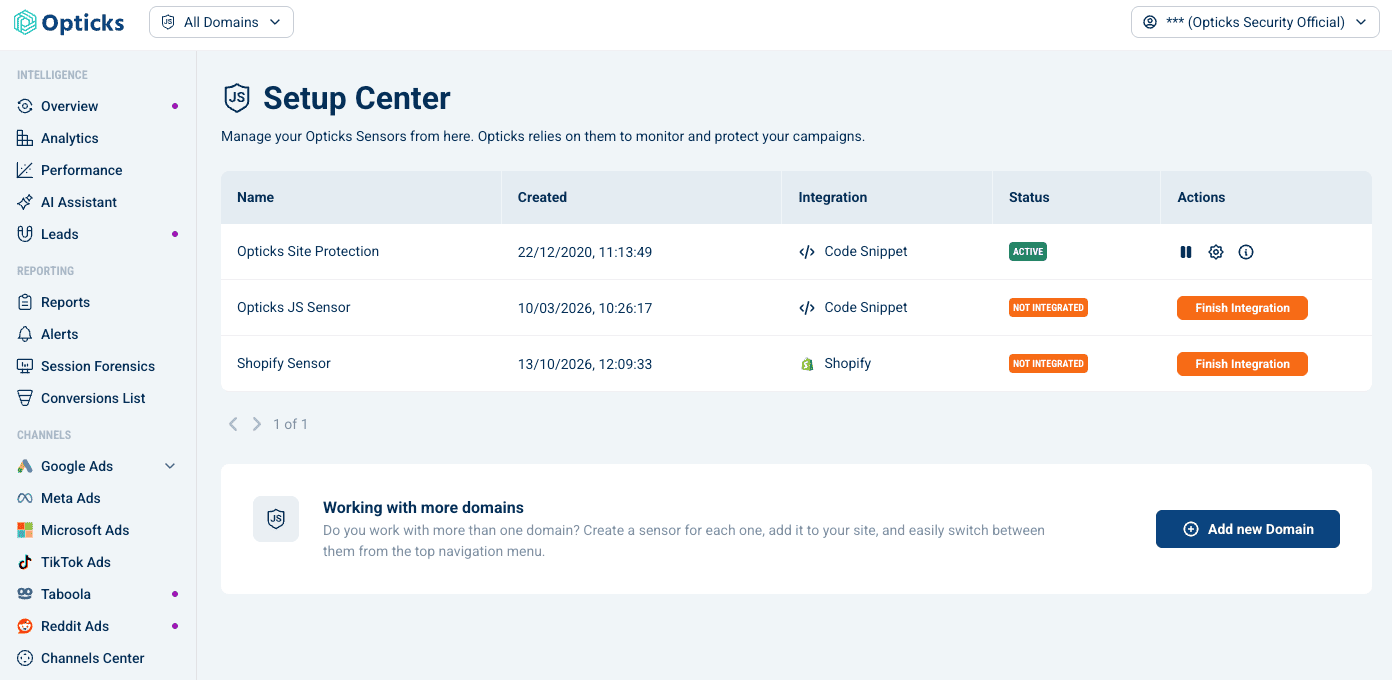
Adding a sensor for a new domain
-
Go to Setup Center.
-
In the Working with more domains box, click Add new Domain.
-
Pick how you want to install Opticks on that site:
- Google Tag Manager
- Google Tag Manager (Template Gallery)
- Code Snippet — paste the tag into your site's HTML yourself
- Shopify
-
Follow the steps for the method you chose.
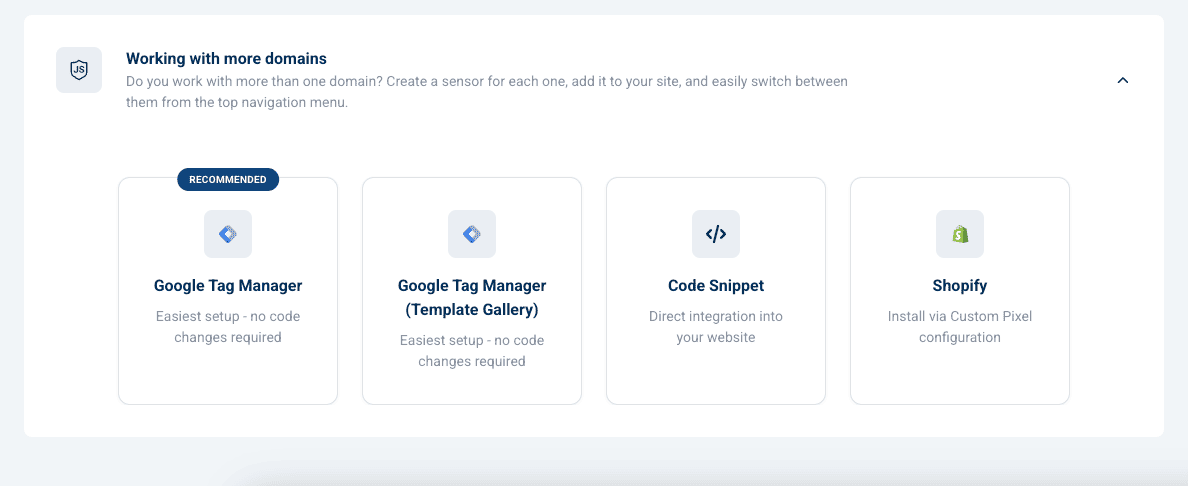
The sensor appears in the table straight away with the status Not integrated. It starts protecting the domain once Opticks receives the first traffic from it, and the status changes to Active on its own.
Note: you can leave an installation half-finished and come back later. The sensor waits for you in the table with a Finish Integration button.
Understanding the sensors table
Each row is one domain:
| Column | What it tells you |
|---|---|
| Name | A label you choose. Click it to rename the sensor. |
| Created | When the sensor was added. |
| Integration | How Opticks is installed on that site: GTM, GTM Template Gallery, Code Snippet or Shopify. |
| Status | Active, Paused, or Not integrated. |
Status meanings
- Active — the sensor is installed and Opticks is monitoring the domain.
- Not integrated — the sensor exists but Opticks has not seen any traffic from it yet. Either the installation is unfinished, or it is finished but nobody has visited the site since.
- Paused — you stopped detection on purpose.
Renaming a sensor
Click the name in the table, type the new one and confirm. The name is only a label for you, so changing it is safe at any time — it does not affect the installation or the data already collected.
Pausing and resuming a sensor
Pausing stops Opticks detection for that domain without removing anything, which is useful while you rebuild a site or run a test.
-
In the sensor's row, click the pause button.
-
Type the sensor's name to confirm, then click Pause Sensor.
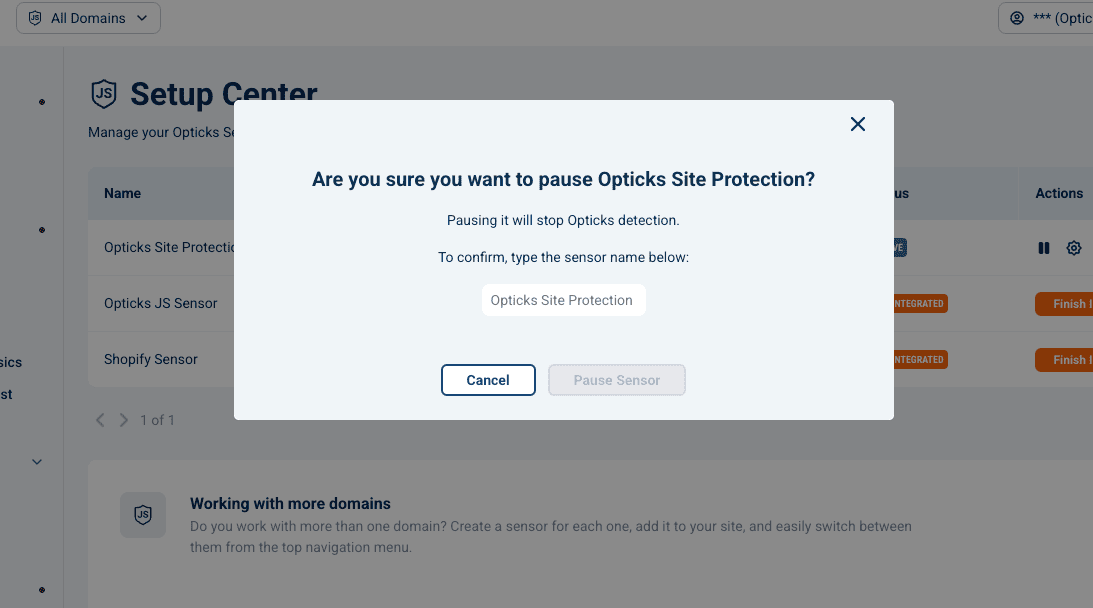
The status changes to Paused. To start again, click the play button in the same row — no confirmation needed.
While a sensor is paused, Opticks does not analyse traffic for that domain, so there is a gap in its data for that period. The tag can stay on your site.
Changing a sensor's settings
Click the settings button in the sensor's row. A panel opens where you can:
- see and change the installation method
- rename the sensor
- copy the tag or code snippet for that domain
- adjust its security configuration
- delete the sensor
The info button next to it reopens the installation instructions, which is the quickest way to get the code again.
Deleting a sensor
Deleting is permanent: the sensor and its configuration are gone and cannot be recovered.
-
Click the settings button in the sensor's row.
-
Scroll down to Danger zone.
-
Click Delete Sensor and confirm.
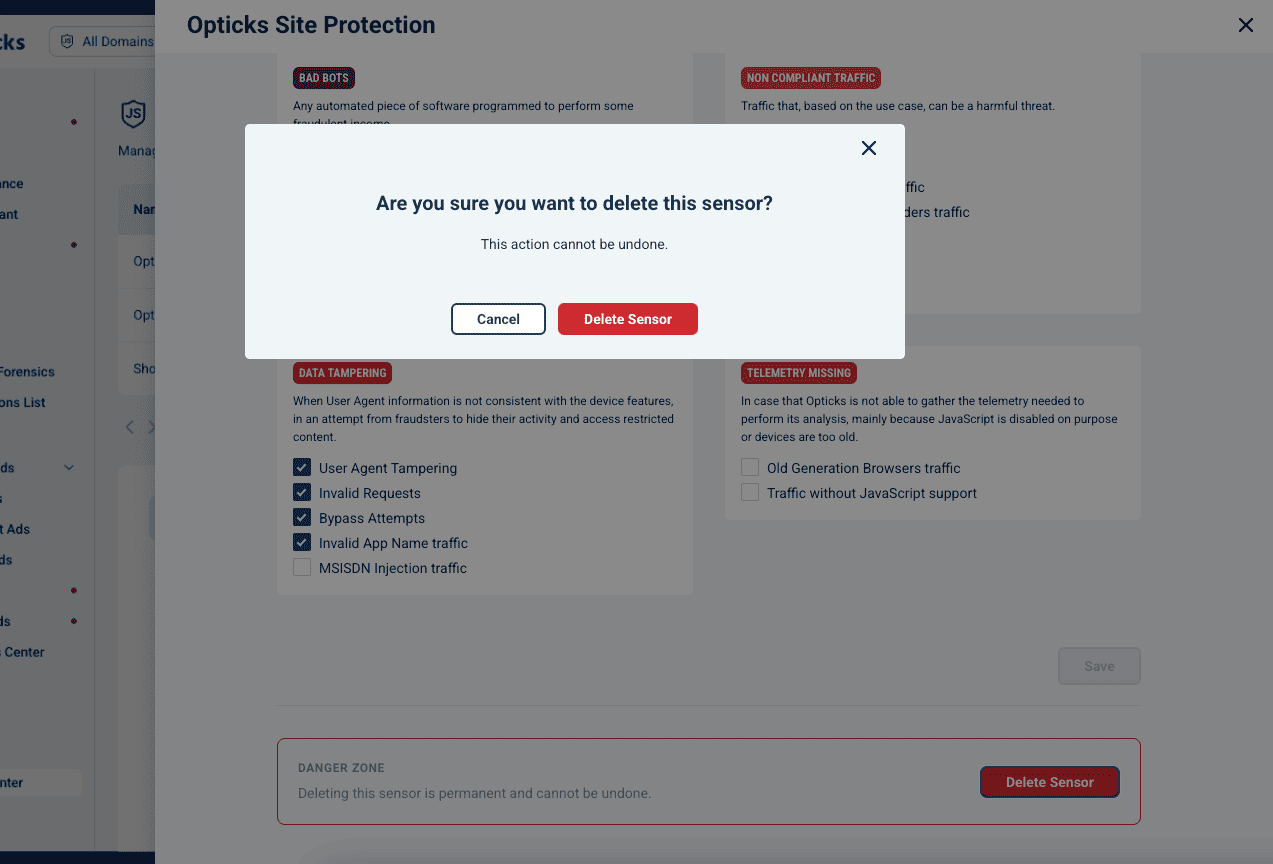
Remember to remove the Opticks tag from that website too, otherwise it keeps loading a sensor that no longer exists.
When you cannot delete a sensor
- It is your only sensor. The button is disabled and the panel says "At least one active sensor is required." Add the replacement domain first, then delete the old one.
- The sensor was never integrated. The settings panel only opens for sensors that have received traffic, so a sensor stuck on Not integrated cannot be deleted from here. Write to support@optickssecurity.com and we will remove it for you.
- You are on a demo account. Demo accounts are read-only for these actions.
If you only want to stop monitoring for a while, pause the sensor instead of deleting it. Pausing is reversible; deleting is not.
Frequently asked questions
How many sensors can I have? As many domains as you need to protect. Your plan limits the traffic Opticks analyses, not the number of sensors.
Does deleting a sensor delete its data? Its configuration goes away with it. If you need the historical reports for that domain, export them before deleting.
Can I move a sensor to a different domain? No. Create a sensor for the new domain and delete the old one once the new one is Active.
Who can do all this? Any user with full access to the account. Users invited to a single domain can open their own sensor's settings but cannot add new domains — see Giving a user access to a single domain.