Giving a user access to a single domain
If you protect more than one website with Opticks, each one has its own sensor. By default, everyone you invite to your account can see the data of every sensor and switch between them from the top navigation menu.
Sometimes that is more access than you want to give. If an agency manages one of your sites, or one team is only responsible for one brand, you can invite them to a single sensor instead. They will sign in to Opticks and see that domain's data only — everything else in your account stays private.
Before you start
- You need the Admin role on the account.
- Your account must have more than one sensor to restrict anyone to a specific one. If you only have one, create the second one first — see Creating a sensor for another domain below.
- Users who were already invited keep full access to the account. This only applies to invitations you send from now on.
Inviting a user to a single domain
-
Open the user menu in the top right corner and click Users.
-
Click Invite user.
-
Type the person's email address and click Send invitation.
-
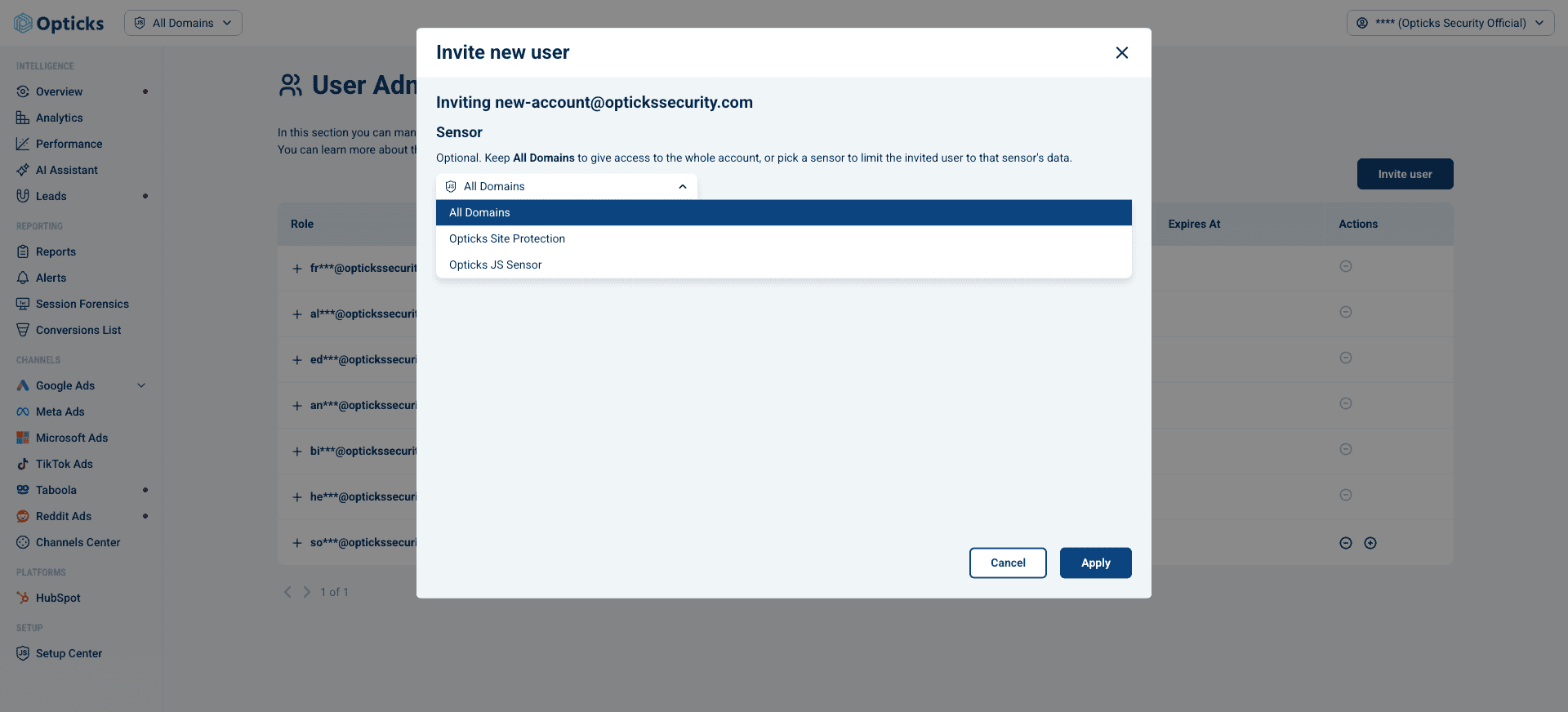
Under Sensor, open the dropdown and choose the domain they should see. It starts on All Domains, which gives access to the whole account.
-
Click Apply.
The invitation is sent as usual. When the person accepts it, they will only ever see the data of the sensor you picked.
Tip: the Sensor step is optional. Leave it on All Domains whenever you want the person to see the whole account, which is how invitations worked before.
Seeing who has access to what
The table in Users has a Sensor column showing what each user can reach:
- the name of a sensor — that person only sees that domain
- All domains — that person sees the whole account
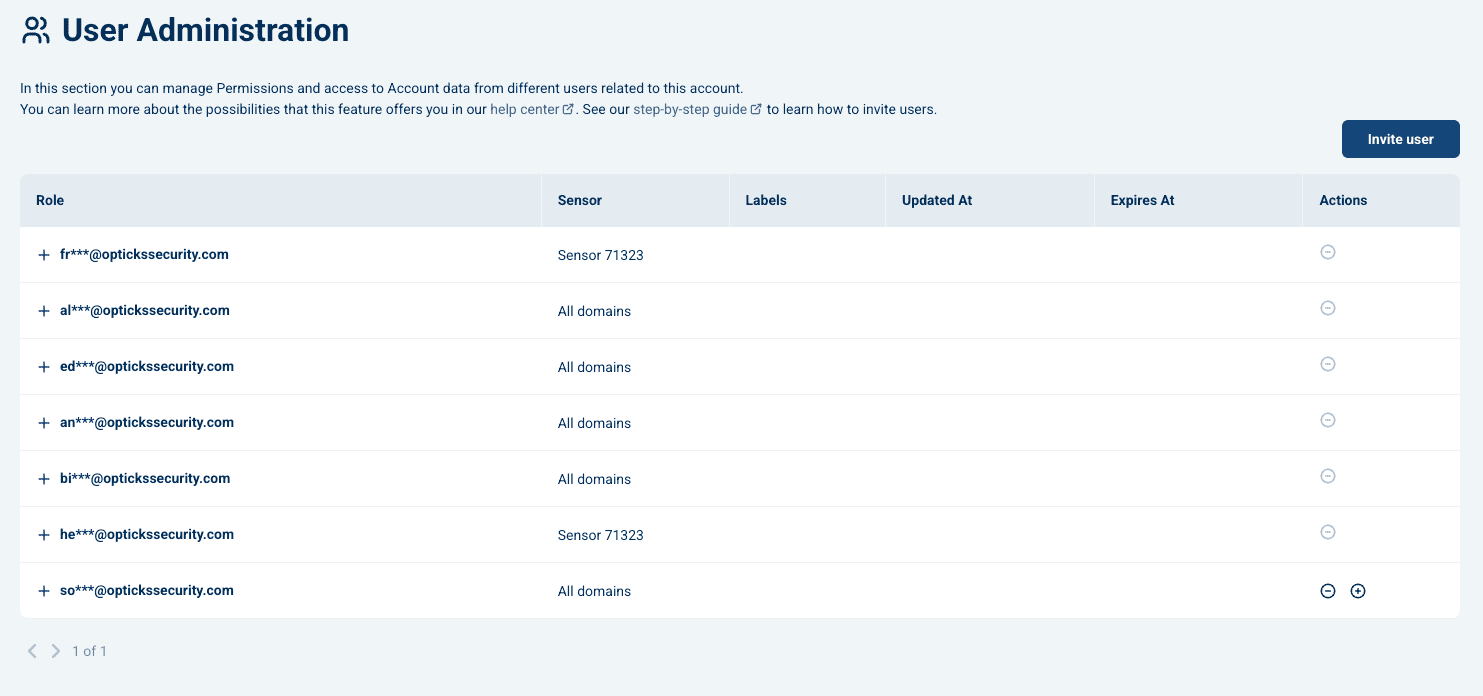
The column is only there if your account can split access by domain; if every user in your account has full access, it is hidden.
What a single-domain user sees
Someone invited to a single domain uses Opticks exactly like anyone else, with two differences:
- The domain selector in the top navigation menu shows their domain and cannot be changed. Hovering over it explains why: "This account is scoped to a single sensor, so switching domains is disabled."
- They cannot create new sensors, so the Setup Center does not offer to add another domain. They can still open their own sensor's settings.
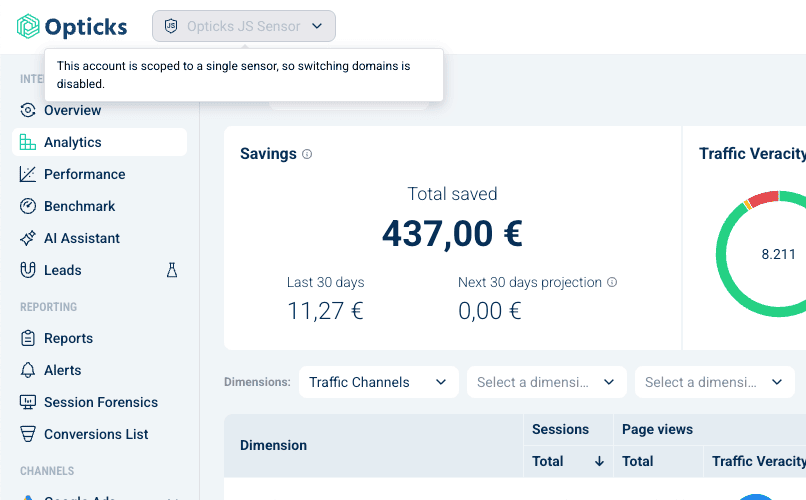
Everything else — Overview, Analytics, alerts, reports — works as usual and is automatically limited to their domain.
Creating a sensor for another domain
To restrict someone to a domain, that domain needs its own sensor. If your account only has one, the invitation screen will tell you so and link you to where you can create another.
- Go to Setup Center.
- In Working with more domains, click Add new Domain.
- Choose how you want to install Opticks on that site and follow the steps.
- Once the sensor exists, go back to Users and send the invitation.
You can read more in Adding, managing and deleting sensors.
Frequently asked questions
Can I change a user's domain after inviting them? Not from the Users screen. Revoke their access and invite them again with the right domain selected.
Can a single-domain user invite other people? Yes, if their role allows it. What they cannot do is create new sensors.
Does this change billing or my traffic allowance? No. Access control and your plan limits are separate; the data is the same data, just visible to fewer people.
I don't see the Sensor column or the Sensor step. Why? Either your account is not set up for multiple domains, or you are signed in as a user who is already restricted to one. Contact support@optickssecurity.com if you think that is wrong.